 MixSift
Choose what you want to keep
Use an Apple Silicon M1 or later Mac running macOS 14 or later. Intel Macs are outside the current supported scope. Start with a local audio file you are entitled to use; these steps do not grant recording, sharing or performance rights.
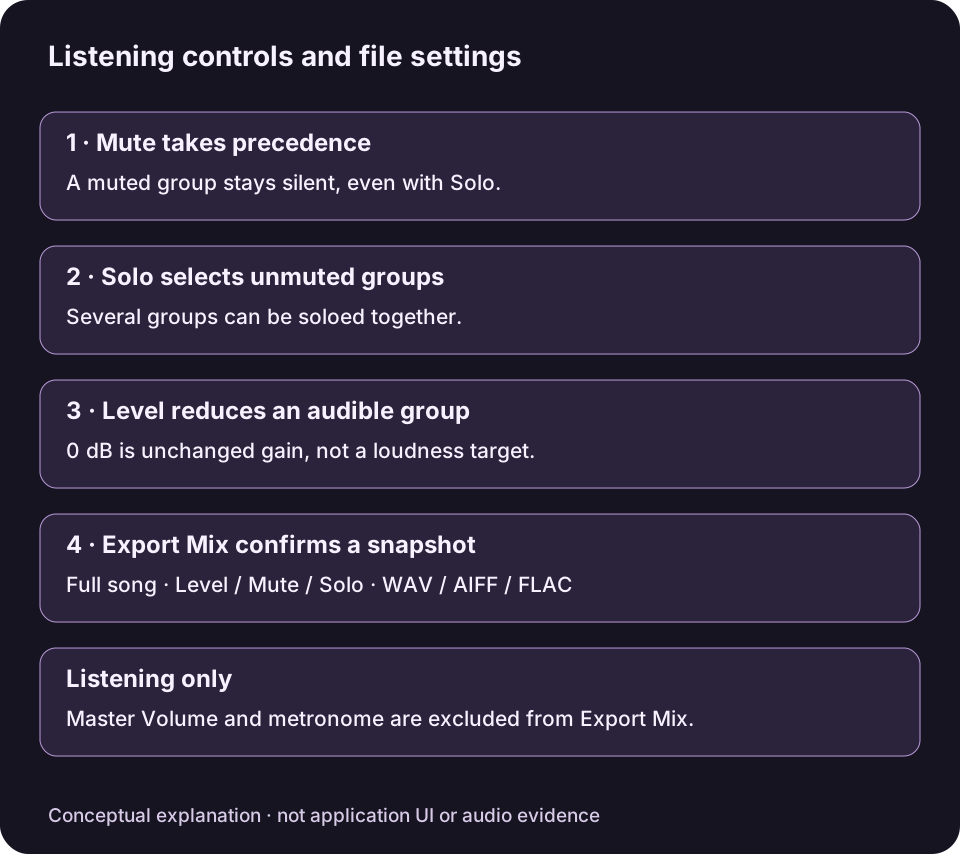
Original explanatory diagram with English control names, not an app screenshot. Export Mix uses its confirmed Level, Mute and Solo snapshot for the full song; listening-only controls are excluded.View full-size diagram ↗
Choose Export Mix when you want one file with your current backing balance. Choose separate stems when you want individual parts to use elsewhere. Both start from estimated separation; neither recovers the original multitrack recording.
MixSift is in prelaunch review. This website does not provide a verified download; use the workflow and support links to review the product.
One file: your practice mix
Export Mix creates a separate mixed file from the available project stems using Level, Mute and Solo. For example, muting Vocals while keeping Drums, Bass and Other produces an estimated accompaniment. Muting Drums instead leaves room for your drum part.
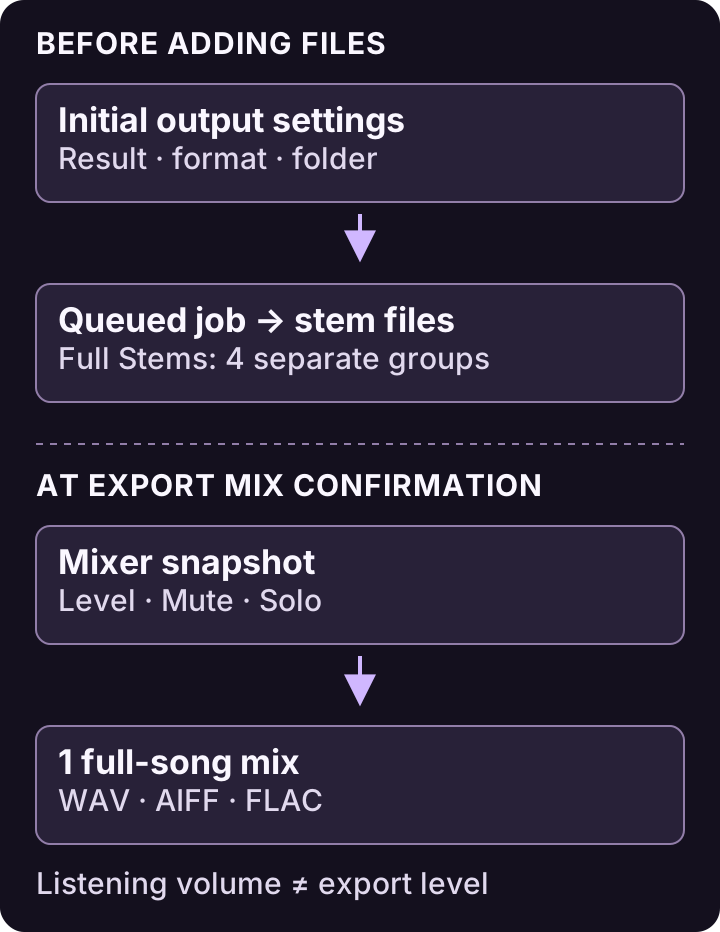
Conceptual Full Stems example. Export Mix saves WAV, AIFF or FLAC; Master Volume and metronome are excluded.View full-size diagram ↗
- Output formats: WAV, AIFF or FLAC. Export Mix does not offer MP3 or AAC (M4A).
- Scope: the full song. A playback position, loop or selected region does not turn this into a shortened export.
- Included settings: the stem Level, Mute and Solo state captured when you confirm. Later live edits affect preview and the next export.
- Excluded listening aids: Master Volume and the metronome. Turning either up or down does not change the rendered file.
Separate files: keep the parts independent
Ordinary stem exports support FLAC, MP3, AAC (M4A), WAV and AIFF. Full Stems provides the four groups: Vocals, Drums, Bass and Other. Other may contain multiple instruments rather than separate guitar, piano or other named tracks.
Individual stems and fixed preset exports stay unchanged by the live mixer. Muting Vocals in Stem Mixer does not silently turn a normal stem file or an earlier Karaoke / Instrumental export into a newly balanced mix. Use Export Mix to render the live balance to a separate file.
For a new four-part project, select Full Stems and Choose Output Folder on Home before Add File(s), then use Split Tracks. Ordinary output choices are captured when the file is queued. Keep the separate stem files if you plan to balance them independently in another audio tool.
Check Level, Mute and Solo
- Level sets a stem’s contribution to the mix. The current range is −60 dB to 0 dB: it lowers a stem relative to its default level rather than boosting it above 0 dB. Use Mute when you want the stem silent.
- Mute silences that stem even if its Solo is also on.
- Solo restricts the mix to the available soloed stems. You can solo more than one stem; a muted soloed stem stays silent. Clear temporary Solo selections before making your backing mix.
Listen with Play Mix to check the intended combination. If you used Solo to inspect a part, clear it before exporting a backing track unless you deliberately want only the soloed stems. An available stem is included only when it is not muted and either no available stem is soloed or that stem is itself soloed.
Export Mix checklist
Open a completed project. Open an available completed four-stem project from Library in Stem Mixer. If you need a new project, use the Home workflow first; existing project files need to be available locally.
Set the balance, then open Export Mix… Adjust Level, Mute and Solo, listen with Play Mix, then open Export Mix…. Check included/excluded stems and their settings rather than relying on memory of what you last heard.
Choose where and how to save. Choose WAV, AIFF or FLAC and review Filename and Destination. Use Change Destination… if needed, then confirm Export Mix. The export uses the confirmed settings, not any later changes you make while it runs.
Respond to clipping protection if needed. If the app reports a sample-clipping risk, you can review its offered whole-mix reduction or return to lower stem levels. The offered reduction preserves the relative stem balance. It is sample-peak protection, not loudness matching or true-peak processing; no reduction amount is predicted here.
Check the exported file. After completion, use Show Export in Finder and listen in the intended player. Check the full-song beginning and end and any exposed passages. To change the saved balance, adjust the mixer and make a new export.
An illustrative choice
Imagine you have permission to use a rehearsal recording. You want a drumless file for a player at rehearsal and individual parts for later balancing elsewhere. Keep the Full Stems result for the second task. Separately, mute Drums and use Export Mix for the first. These are different output purposes, not competing quality modes.
This is an illustrative scenario only. No audio was processed or measured for this guide. Listen for bleed, altered transients and separation artifacts before using either output in a performance or production. Master Volume can make preview comfortable without changing the exported balance.
Audio separation, waveforms and project contents are processed on your Mac without uploading them for separation. Downloading the app, purchases, Restore and access verification can need internet. Apple purchase services and any selected RevenueCat route are separate from audio processing; “local audio” does not mean every service is offline.
Next steps
Follow the local vocal-removal guide or the drumless practice guide. For the current format list and workflow, see file and export support and how MixSift works.